
Example Gallery
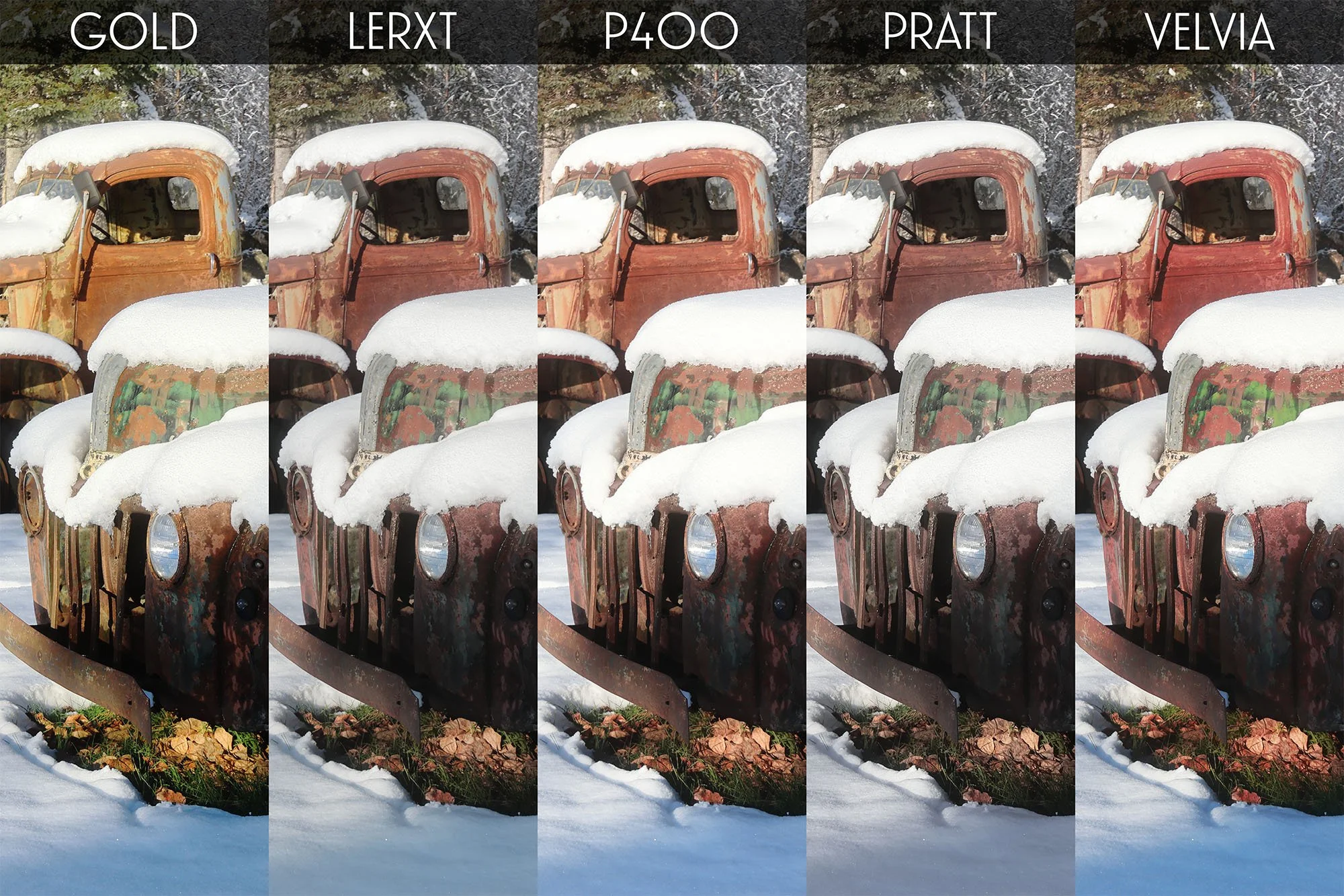
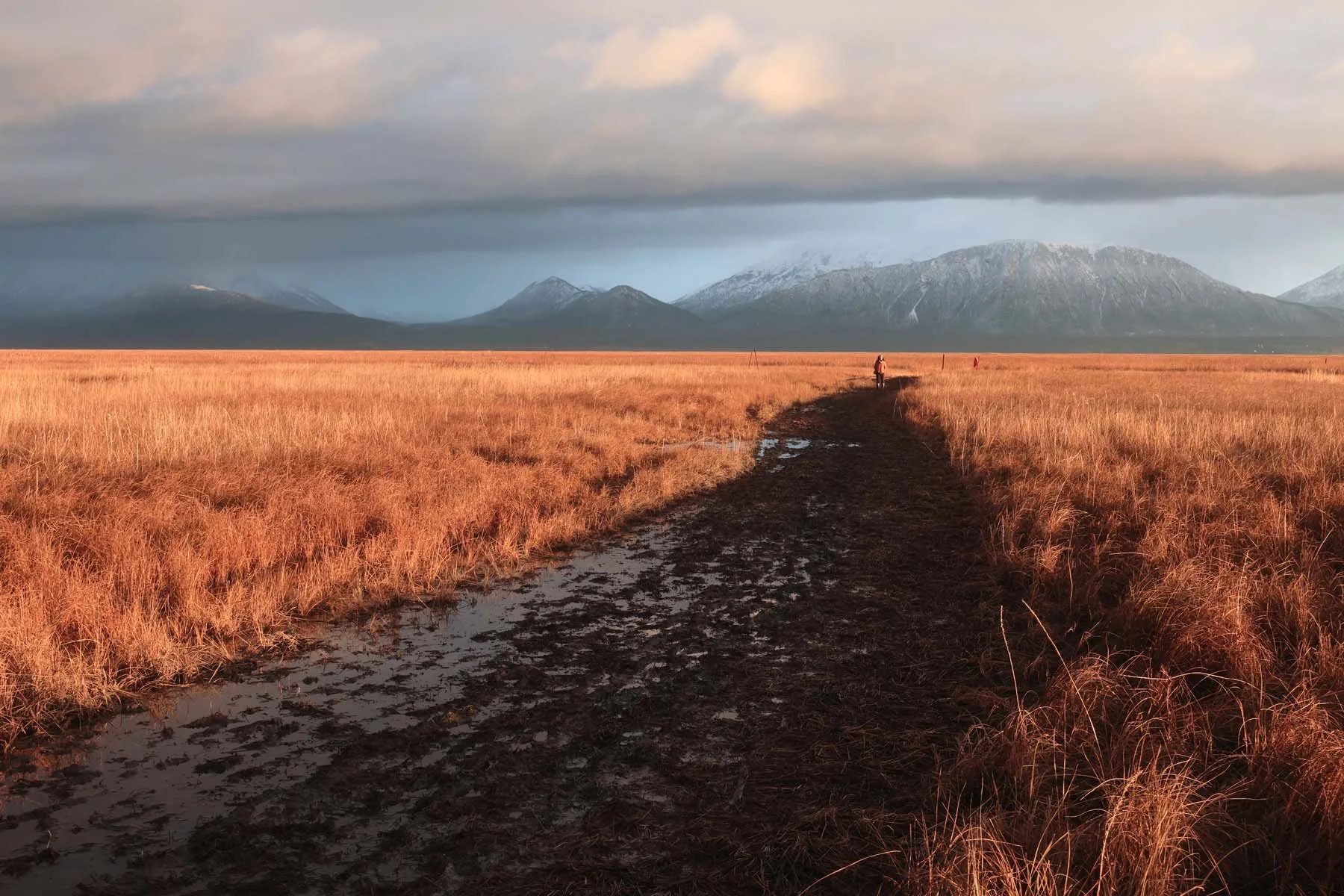
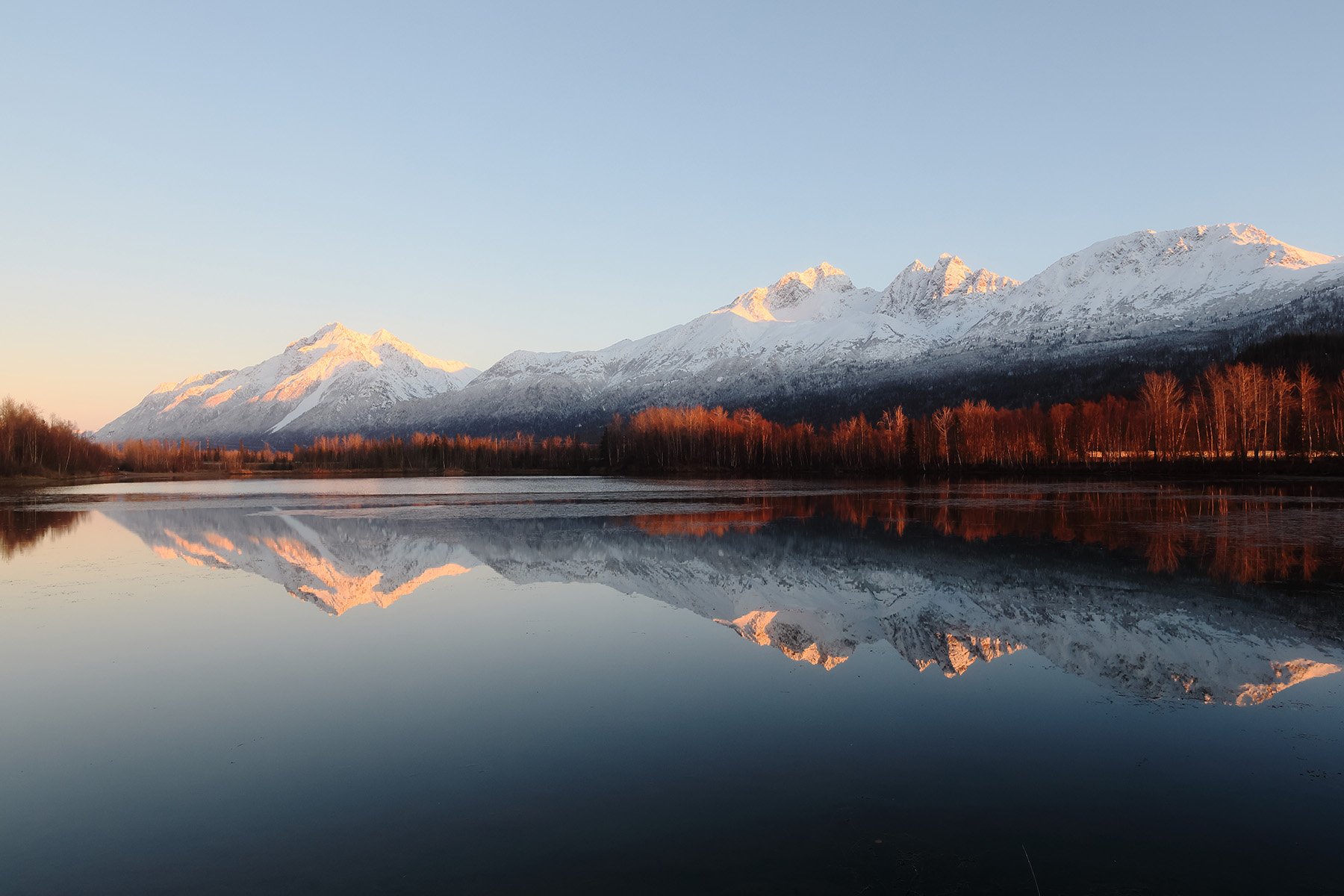
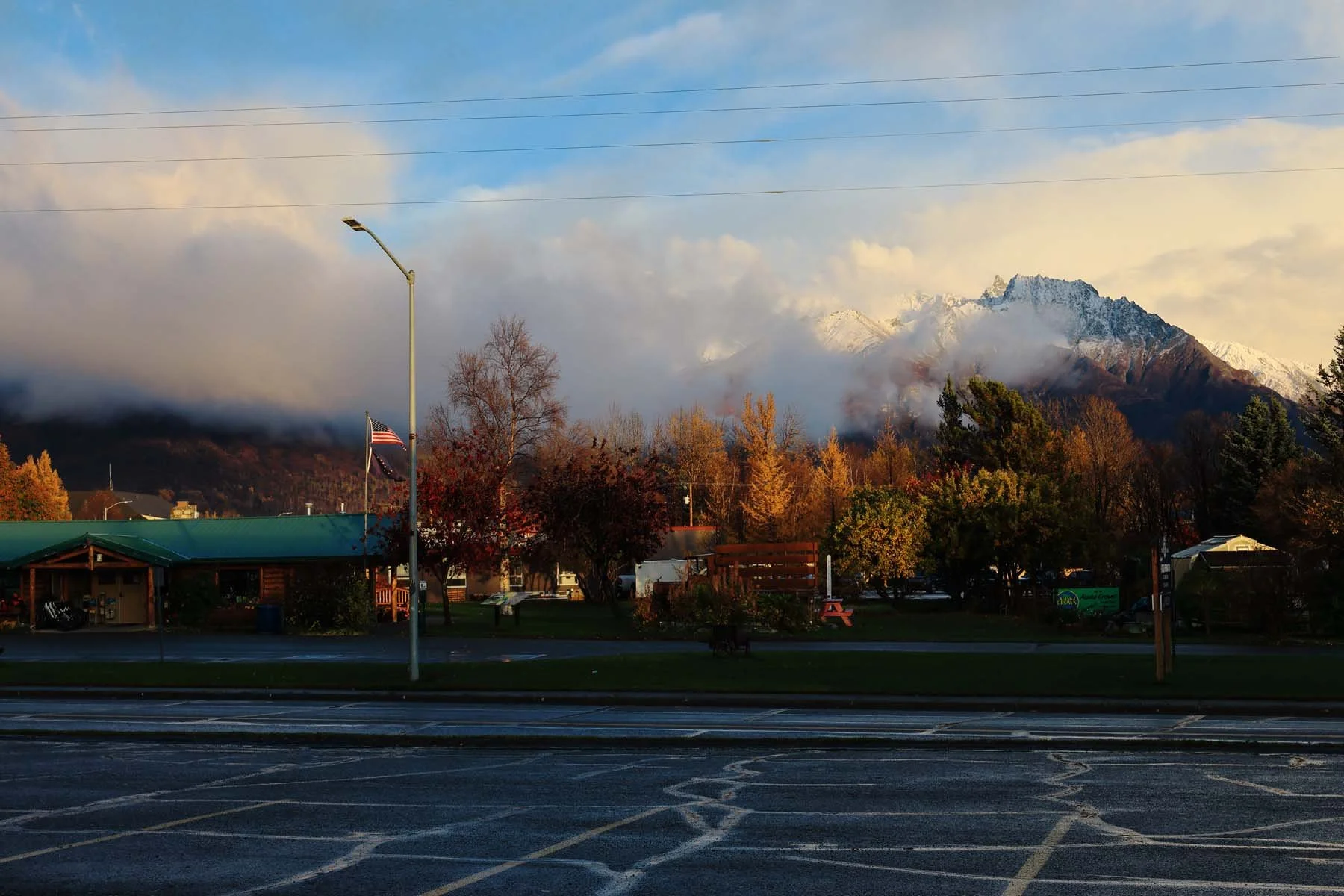
All images below are unedited, straight out of camera jpegs using only the recipes in this pack. Shot with Canon R7
Gold
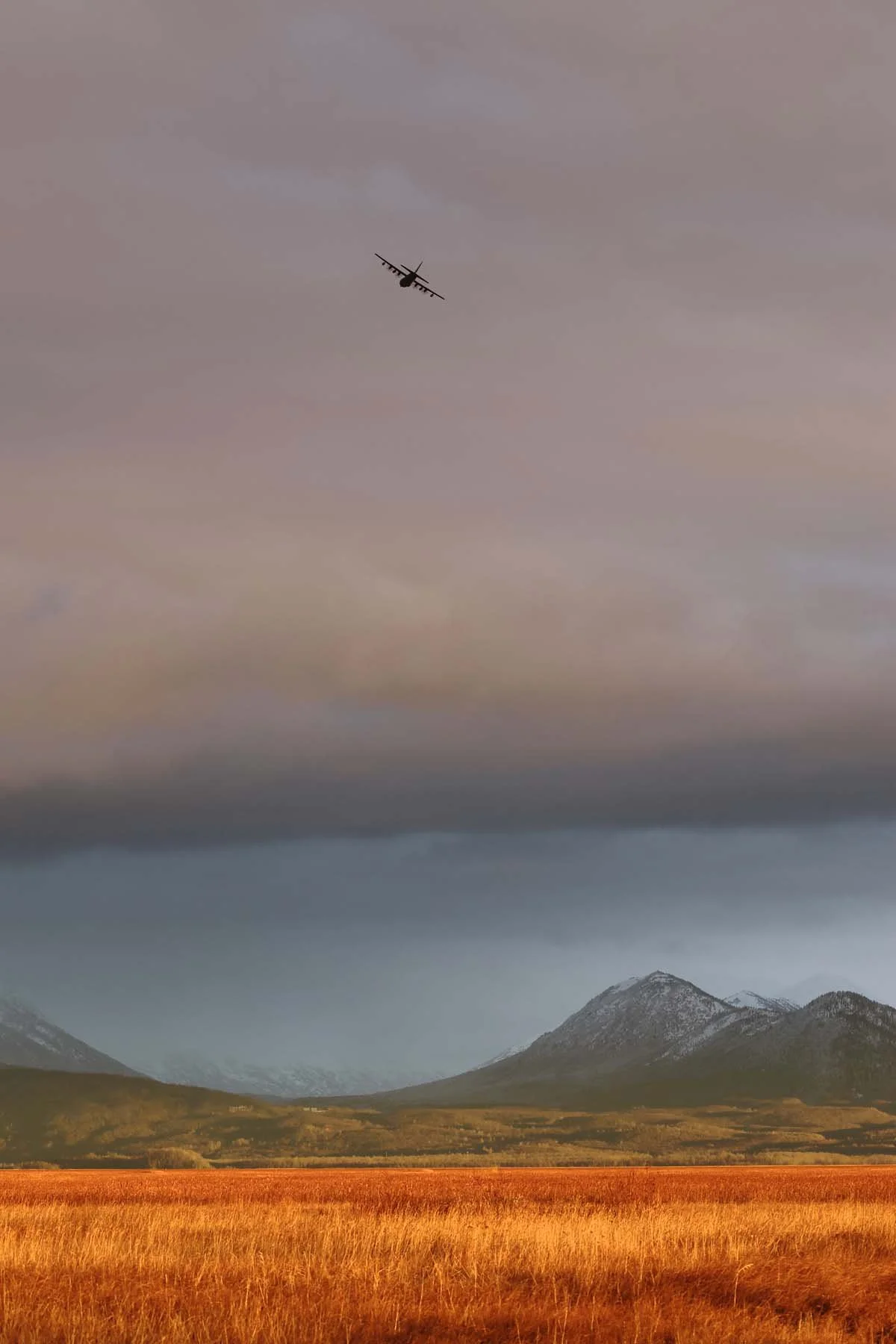
Gold
P400
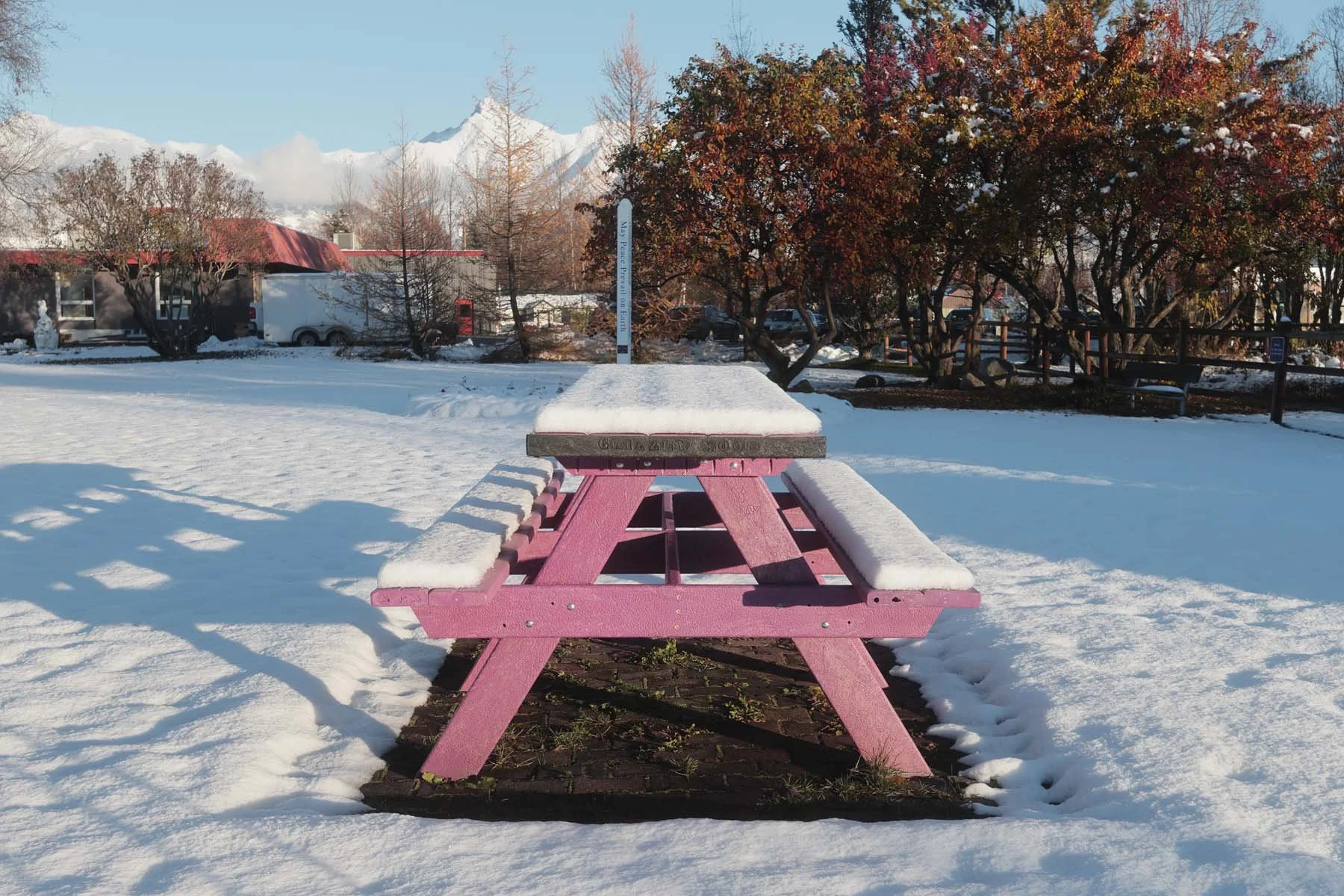
Lerxt
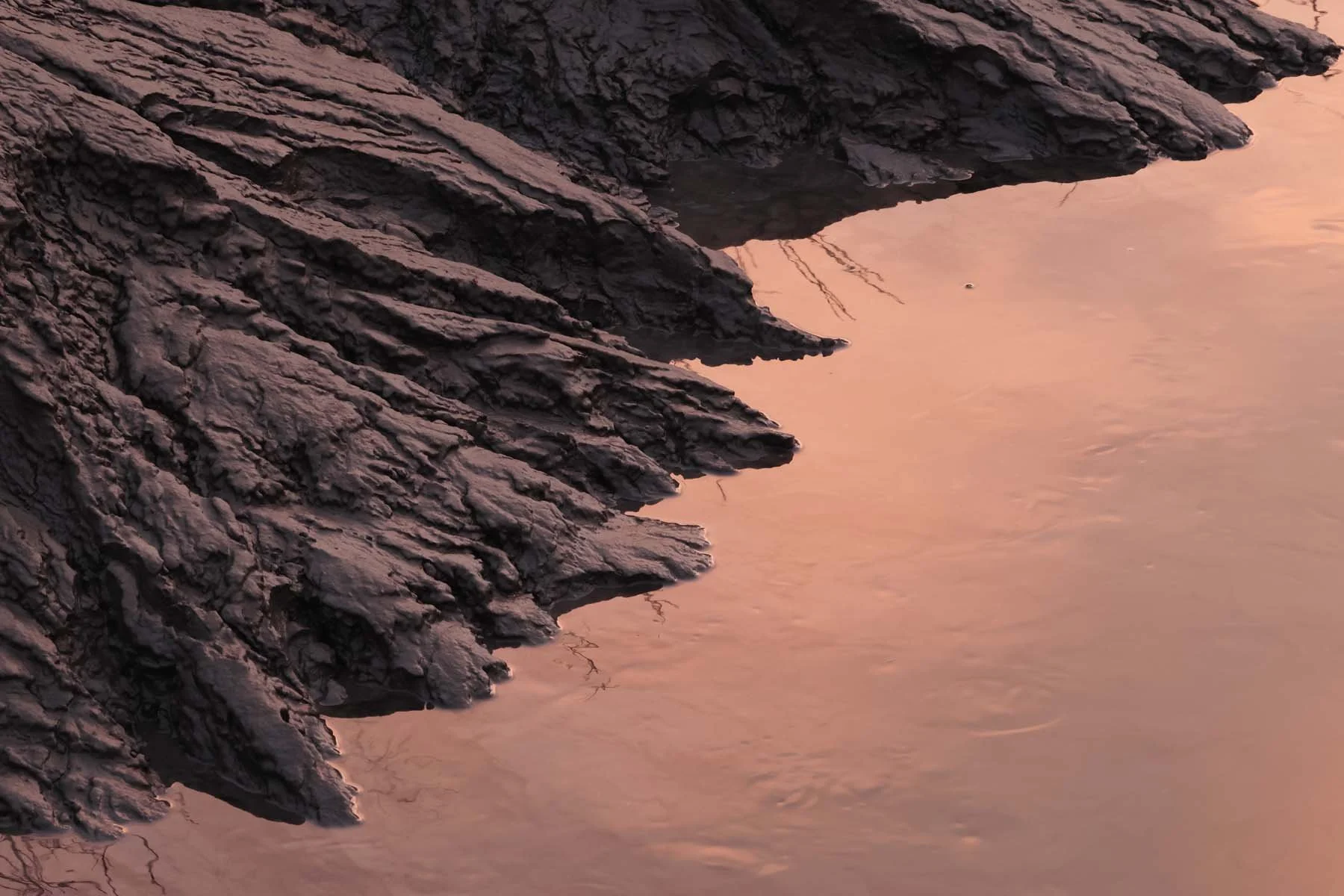
P400
Gold
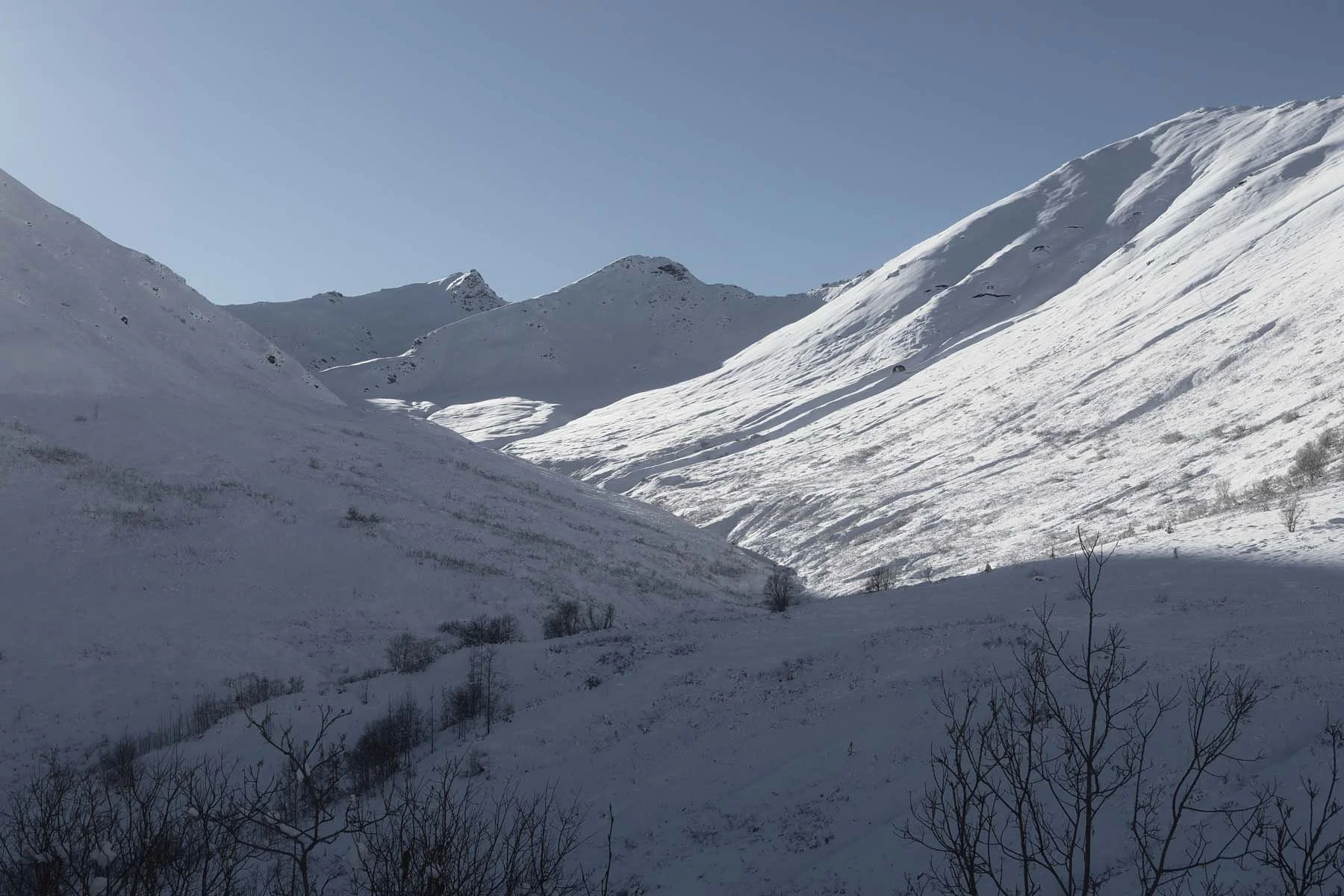
Pratt
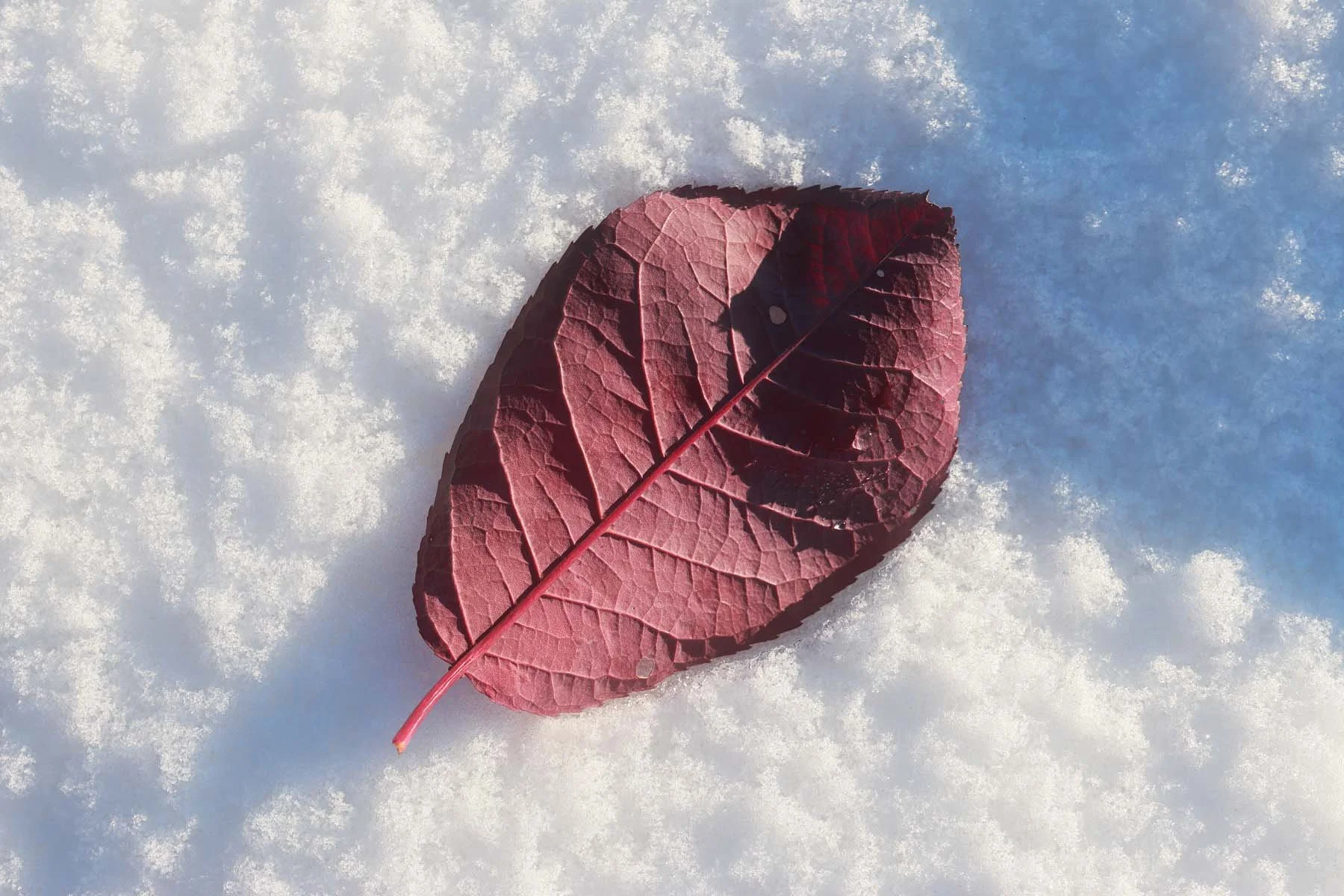
Velvia
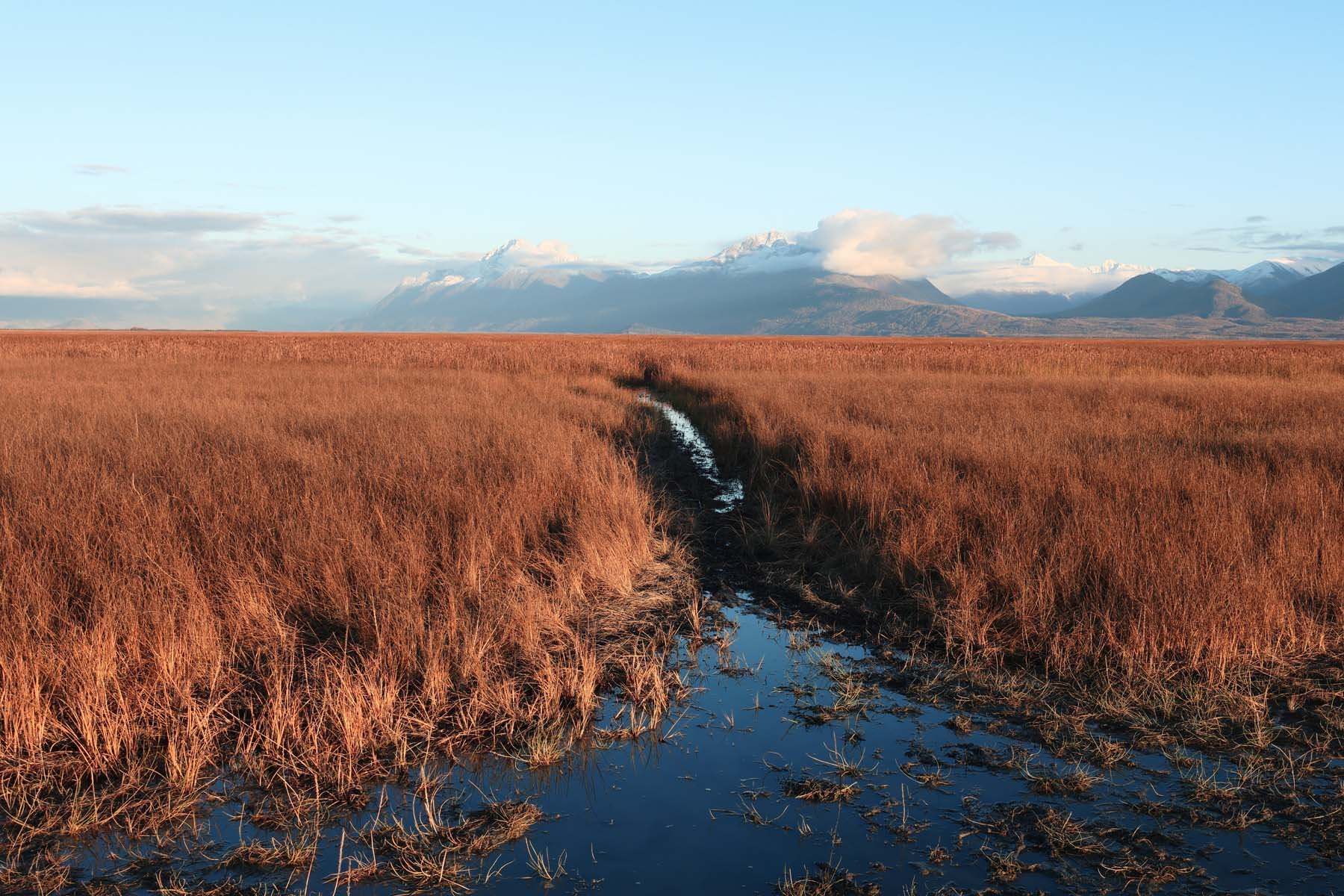
P400
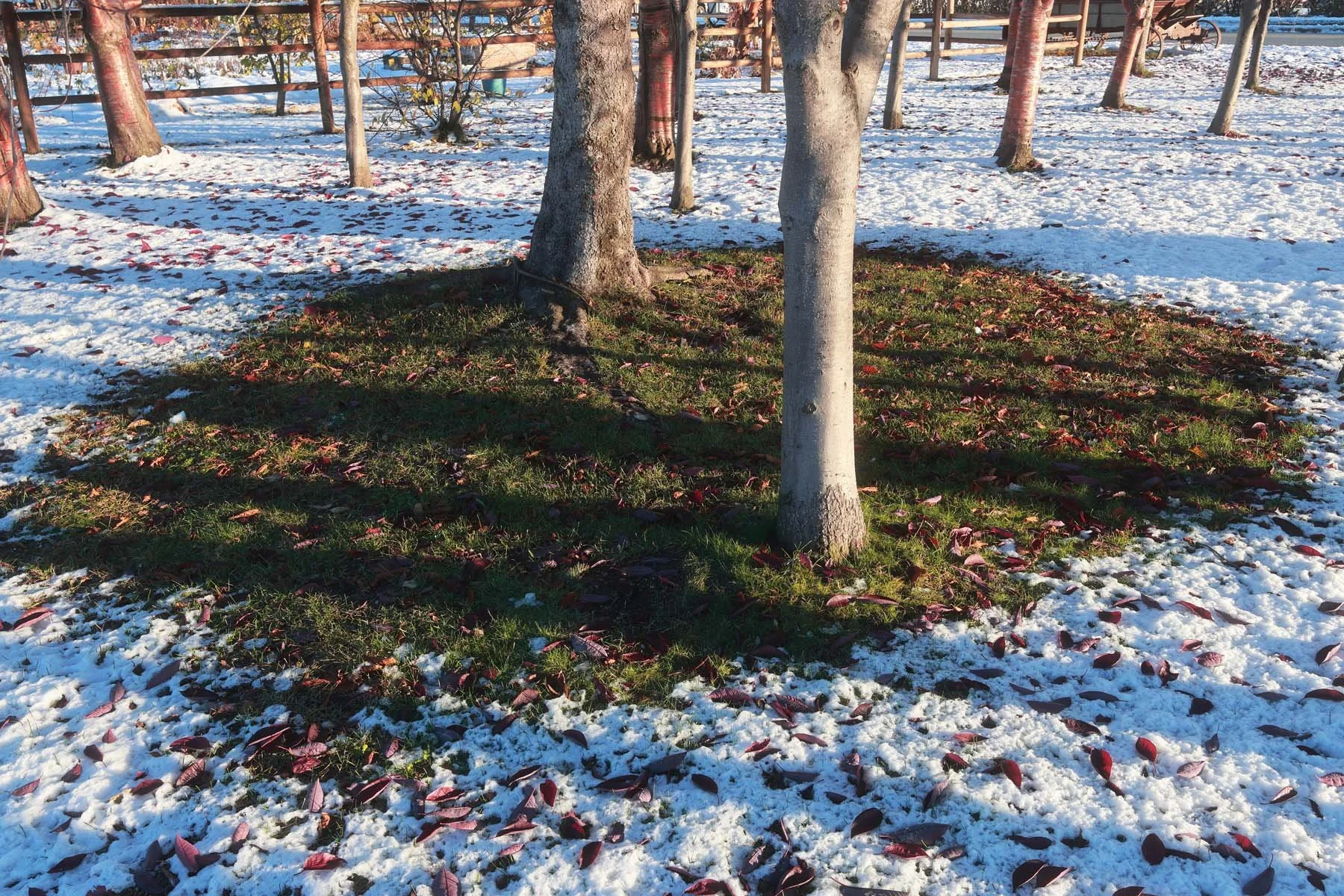
Velvia
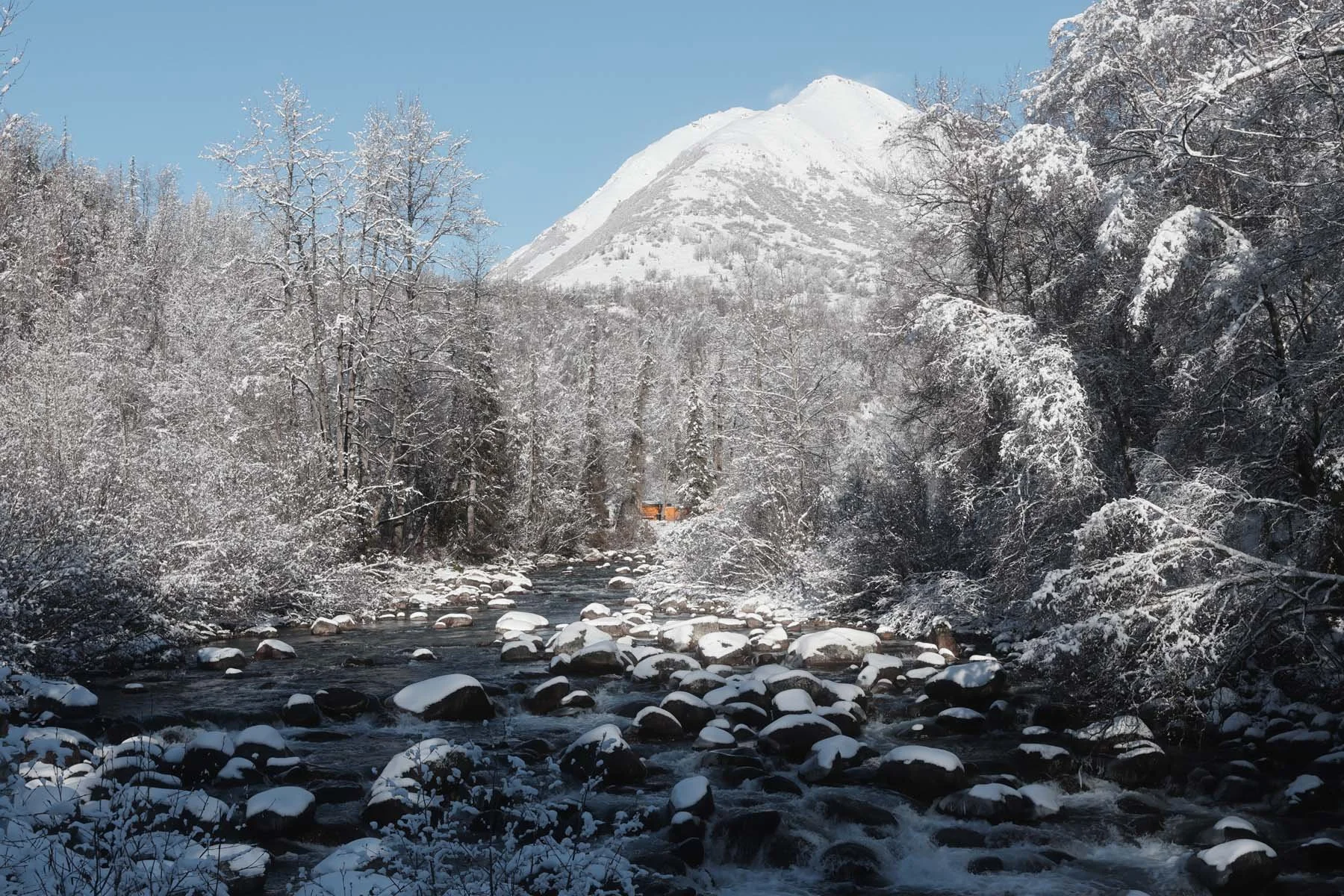
Lerxt
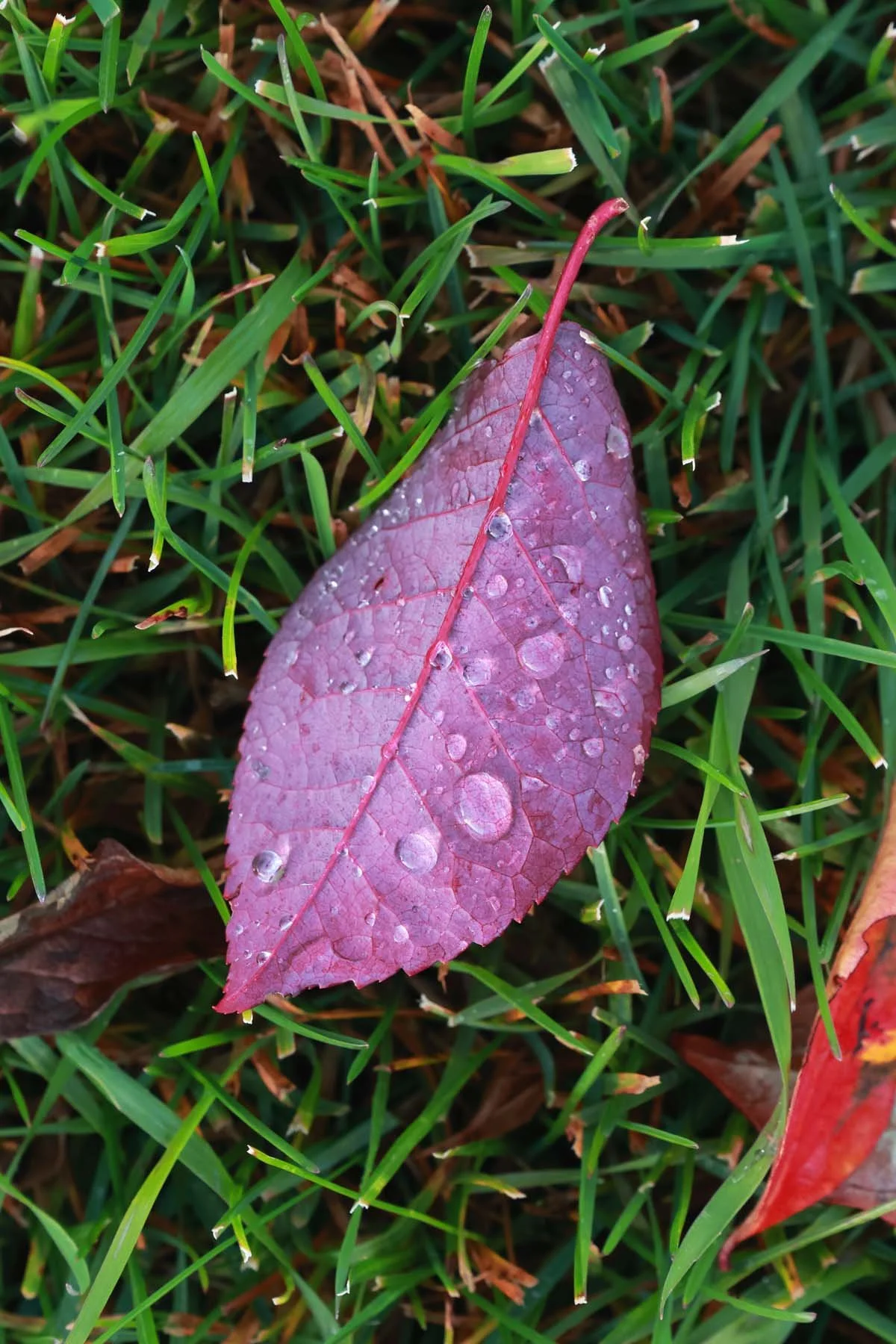
Velvia
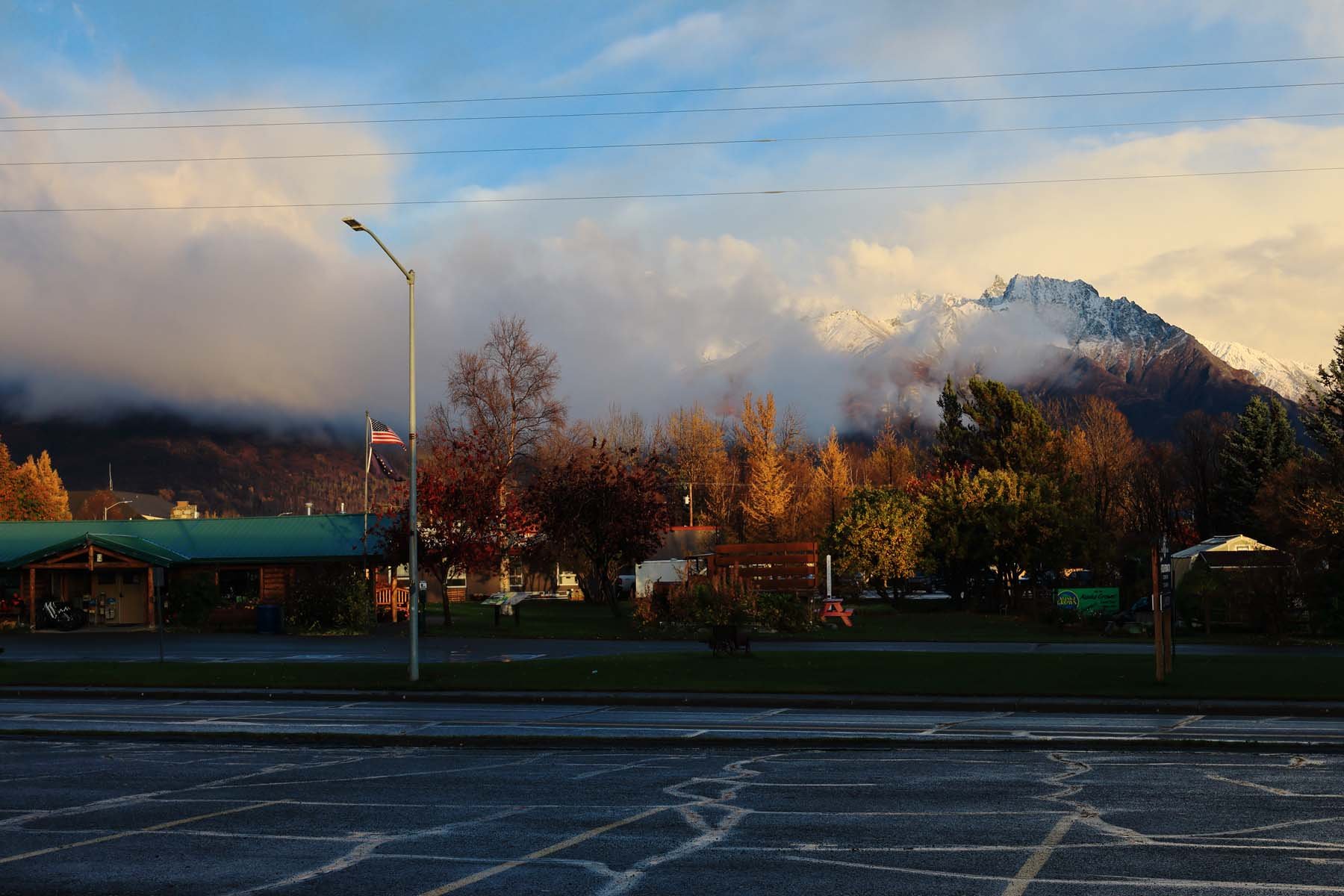
Gold
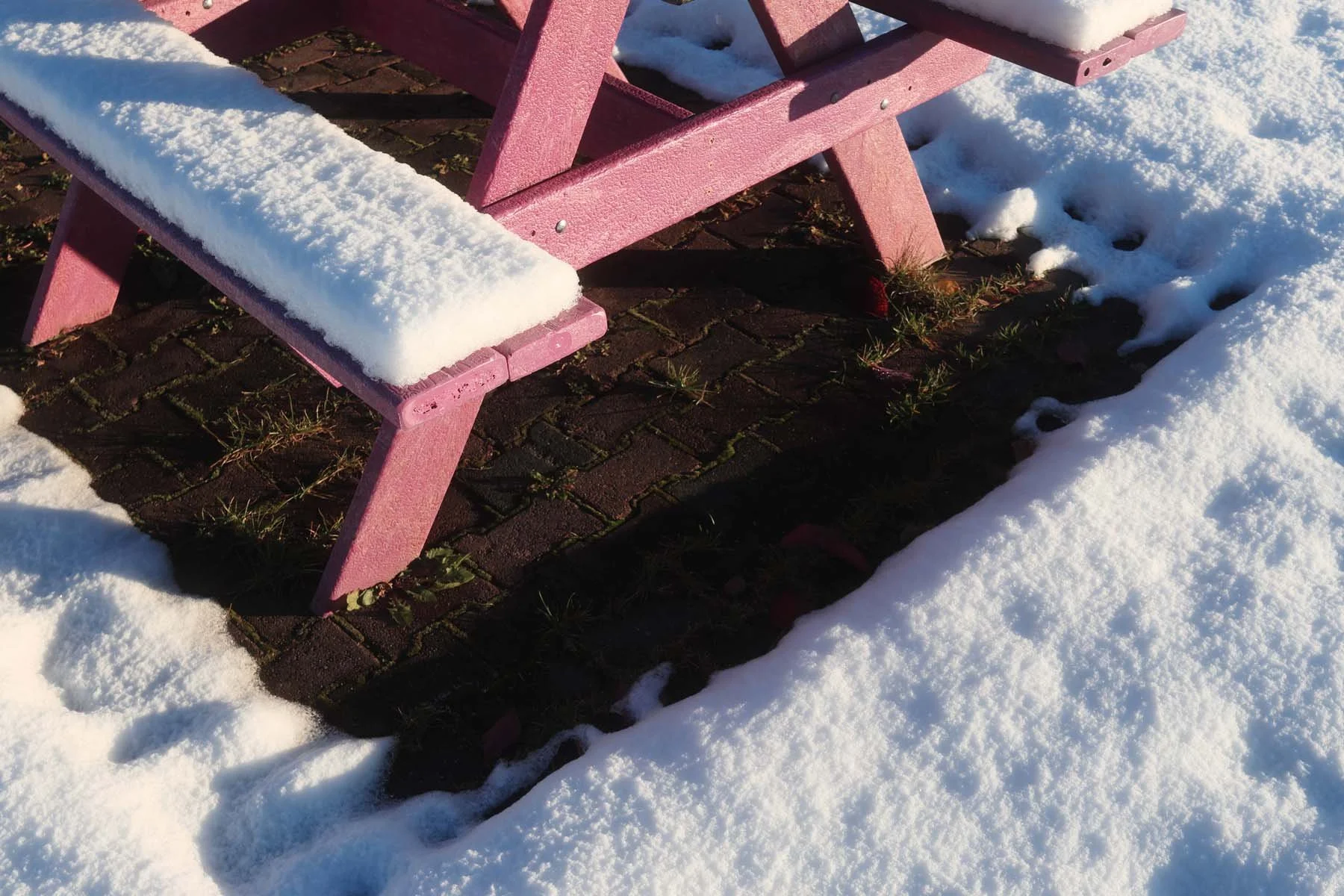
P400
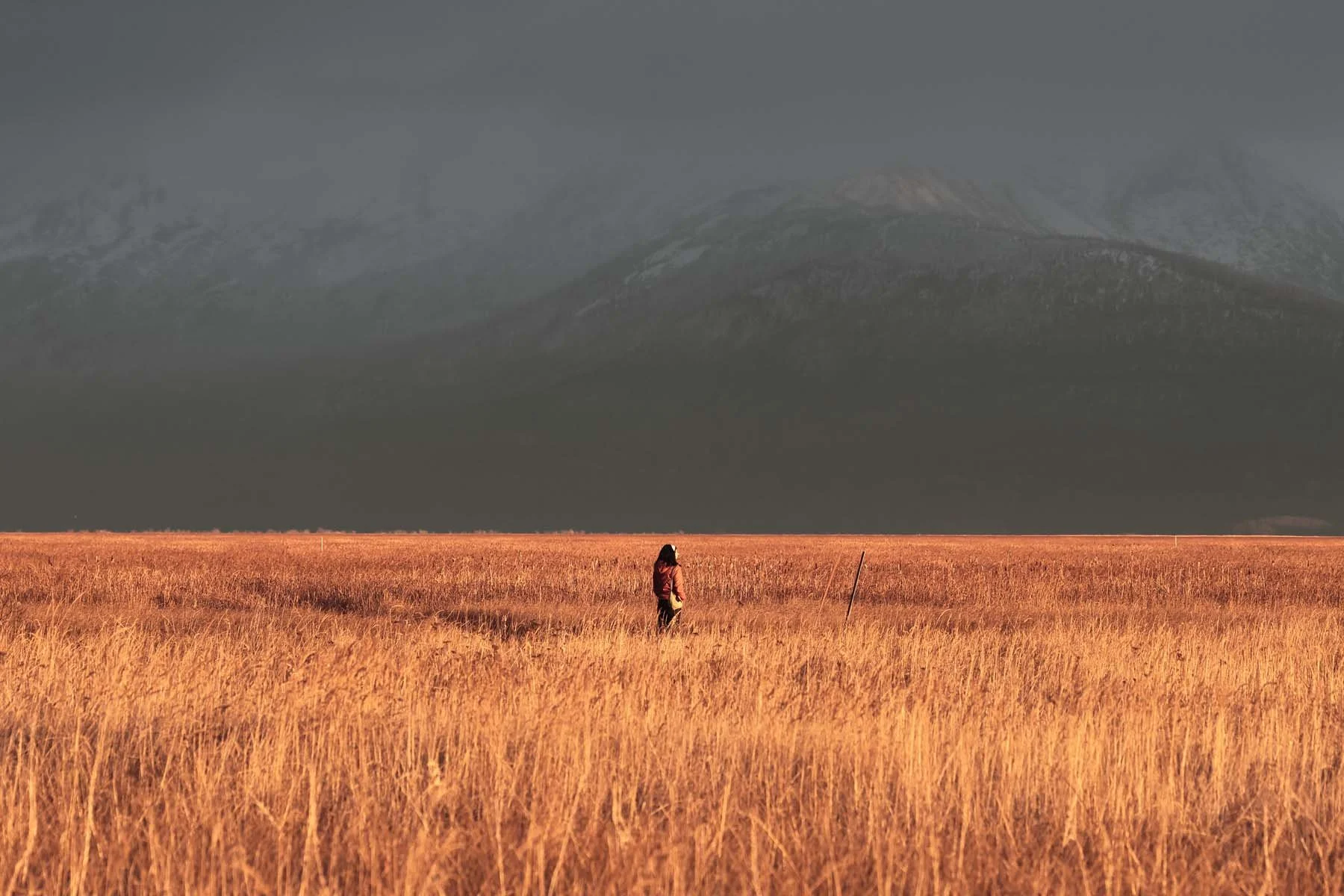
Pratt
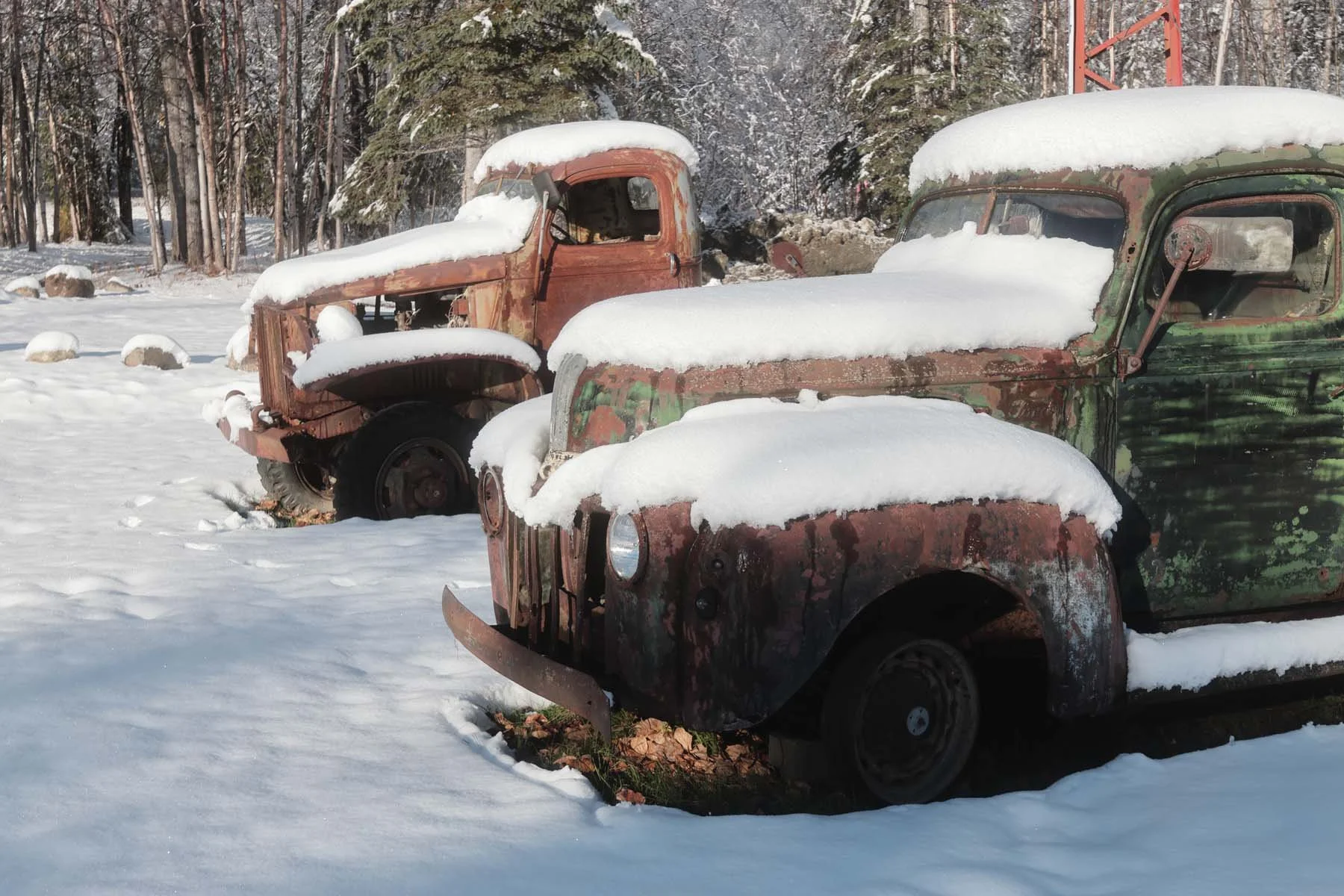
Lerxt
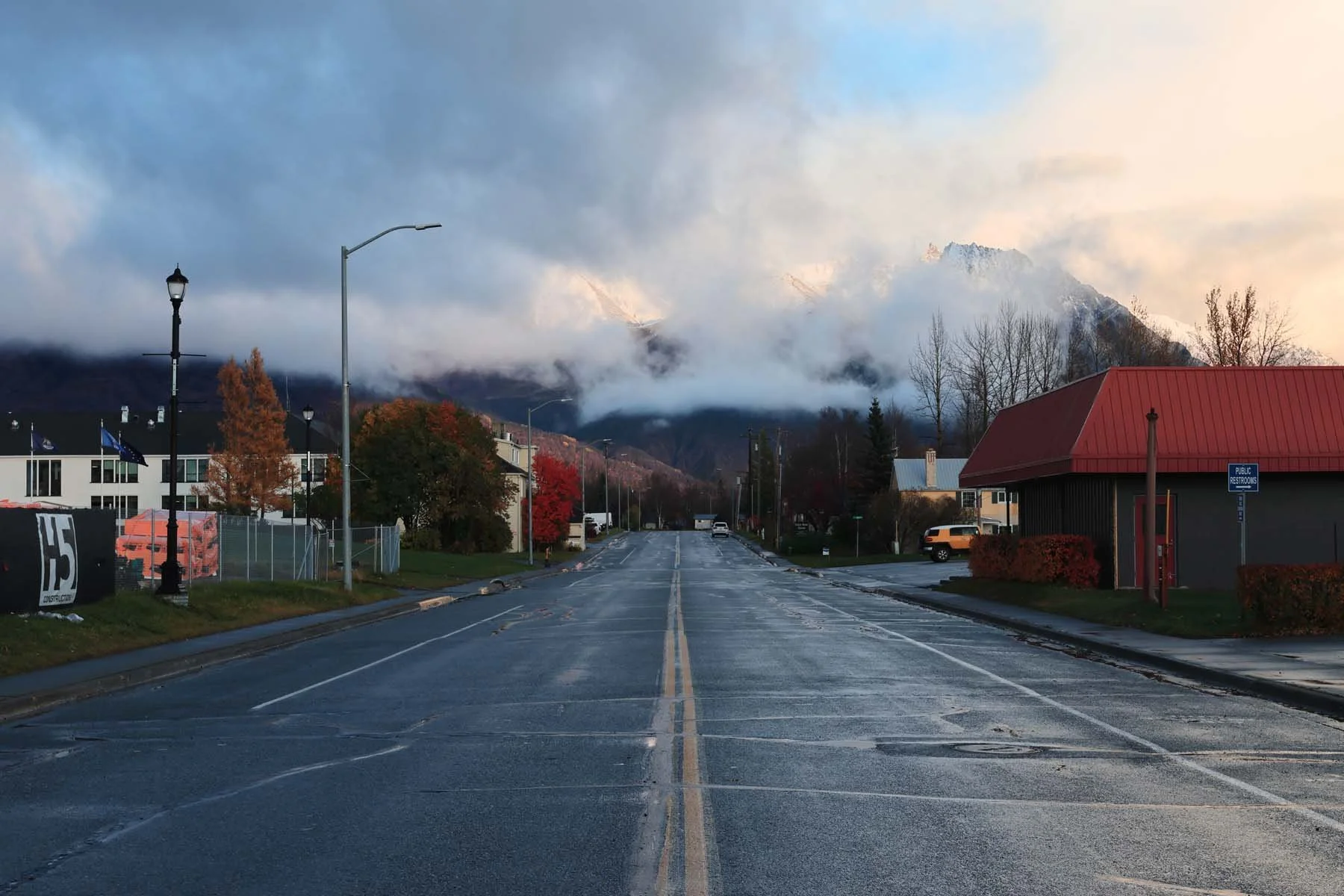
P400
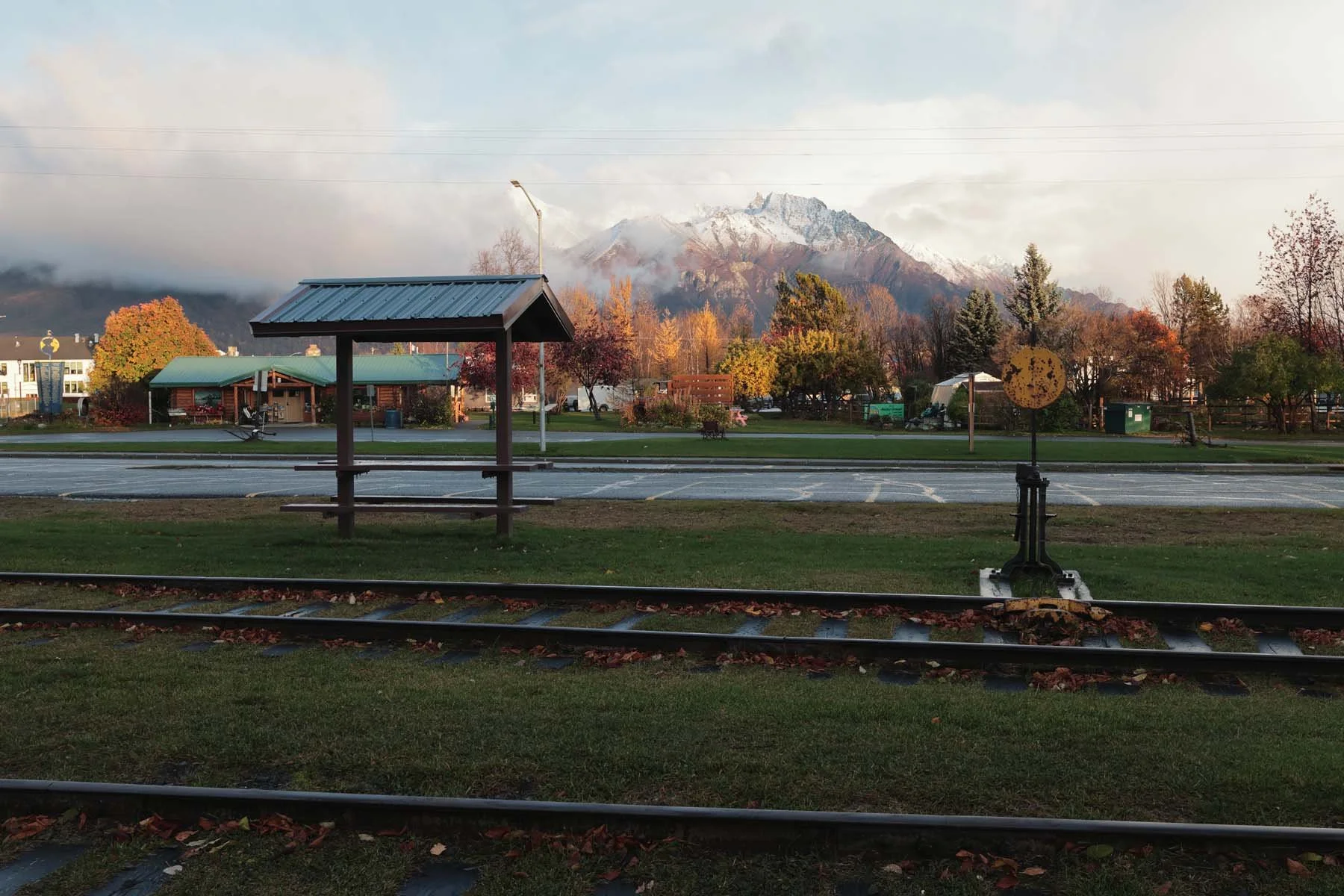
Lerxt
How to Install Canon Recipes
Download and install EOS Utility.
Connect the camera to your computer via a USB cable. Make sure it is in Photo mode, not video.
Open EOS Utility then turn on your camera
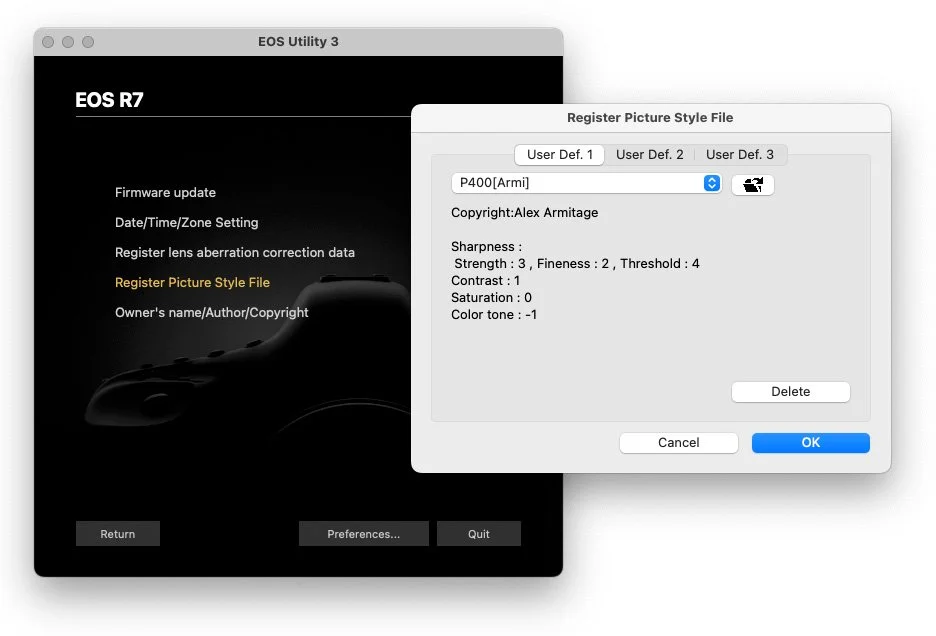
In EOS Utility navigate to Camera Settings > Picture Style > Register User Define Style.
Select an empty slot (or a slot you want to overwrite) > click the folder icon > navigate to the extracted folder of recipes and select a recipe for that slot > select “OK”
Go Shoot! (don’t forget to select a recipe when shooting)
If you’re a visual learner, check out Thomas’s video on how to install Canon recipes to your camera.
FAQ
-
I cannot find a definitive list but these styles should work on any modern Canon DSLR or Mirrorless camera released since the Canon 5D (2008)
Two ways to double check: google it first or open up your cameras picture styles menu and make sure it has User Def. 1-3 slots. If it does, these should work.
Absolute worst case scenario if they don’t work, just let me know and I’ll refund you.
-
Unfortunately, no. Unlike both Fujifilm and Nikon - the only way to get these on the camera is through EOS Utility to my knowledge.
-
No but also yes. These are meant to be used for shooting jpeg images.
If you shoot in raw, when previewing on your camera you will see these recipes applied. However once you take the image and load it into something like Lightroom, the recipe will be lost.
This might be useful if you’d like to see how an image might look with a style applied out in the field but you still plan on editing later.
If you want the flexibility to edit later, I would suggest shooting raw+jpeg. This will apply the recipe to the jpeg and still give you the raw file in case you wanted to edit.
Also you CAN apply recipes to raw images inside Canon’s Digital Picture profile software.
-
The only requirement is you must shoot in the sRGB color space.
In my experience this is the default on Canon cameras and you likely already are.
-
Yes but only if you install them while in video mode within EOS Utility.
These do not work while shooting LOG or RAW video either.
-
Yes absolutely, just be aware you’ll be editing JPEG images that also now have a “look” baked into them. Thus I’d suggest only minor tweaks.
That said, JPEGs have a lot more flexibility than you’d expect!